Time and Playback Controls
Time controls let you scrub through shader animations, loop specific time ranges, and adjust playback speed.
Opening
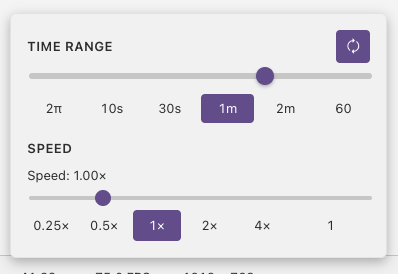
Click the time display (e.g. 42.53s) in the toolbar to expand the time controls menu.
Time Scrubbing
Drag the time slider to manually set the shader time. The shader updates in real time as you scrub.
When loop mode is enabled, the slider range matches the selected loop duration. When loop is off, the slider covers the full elapsed time.
Loop Mode
Click the loop button to enable looping. When active, shader time wraps around at the end of the selected duration.
Duration Presets and Custom Ranges
Quick buttons to set the loop range:
| Preset | Duration | Use Case |
|---|---|---|
| 2π | 6.28s | Trigonometric cycles (sin(iTime), cos(iTime)) |
| 10s | 10s | Short animations |
| 30s | 30s | Medium animations |
| 1m | 60s | Longer sequences |
| 2m | 120s | Extended animations |
Use the custom seconds input next to the presets for exact loop ranges, such as 2.2 seconds. Custom loop durations must be positive and only apply while loop mode is enabled.
Playback Speed
Adjust how fast time advances with the speed slider or preset buttons. The slider covers common speeds from 0.25x to 4.0x in 0.25 increments.
Speed Presets and Custom Speeds
| Preset | Use Case |
|---|---|
| 0.25x | Slow motion — inspect fast animations frame by frame |
| 0.5x | Half speed — see timing details |
| 1x | Normal speed |
| 2x | Double speed — quickly preview long animations |
| 4x | Fast forward |
Use the custom speed input next to the presets for exact multipliers, including values outside the slider range. For example, 0.01 runs time very slowly, 0 freezes playback, 12.5 previews much faster than the 4x preset, and -1 runs time backward.
Next
Performance — cap the frame rate and monitor rendering performance