Shader Explorer
Shader Explorer lets you browse, search, and preview all shader files in your workspace.
Opening
The Shader Explorer is available in two forms — the sidebar for persistent browsing, and the full panel for focused exploration.
- Sidebar — click the
 Shader Studio icon in the VS Code activity bar. The explorer appears as a sidebar view you can keep open alongside your editor.
 - Full panel — open the toolbar menu and choose Shader Explorer, or run Shader Studio: Open Shader Explorer from the command palette.
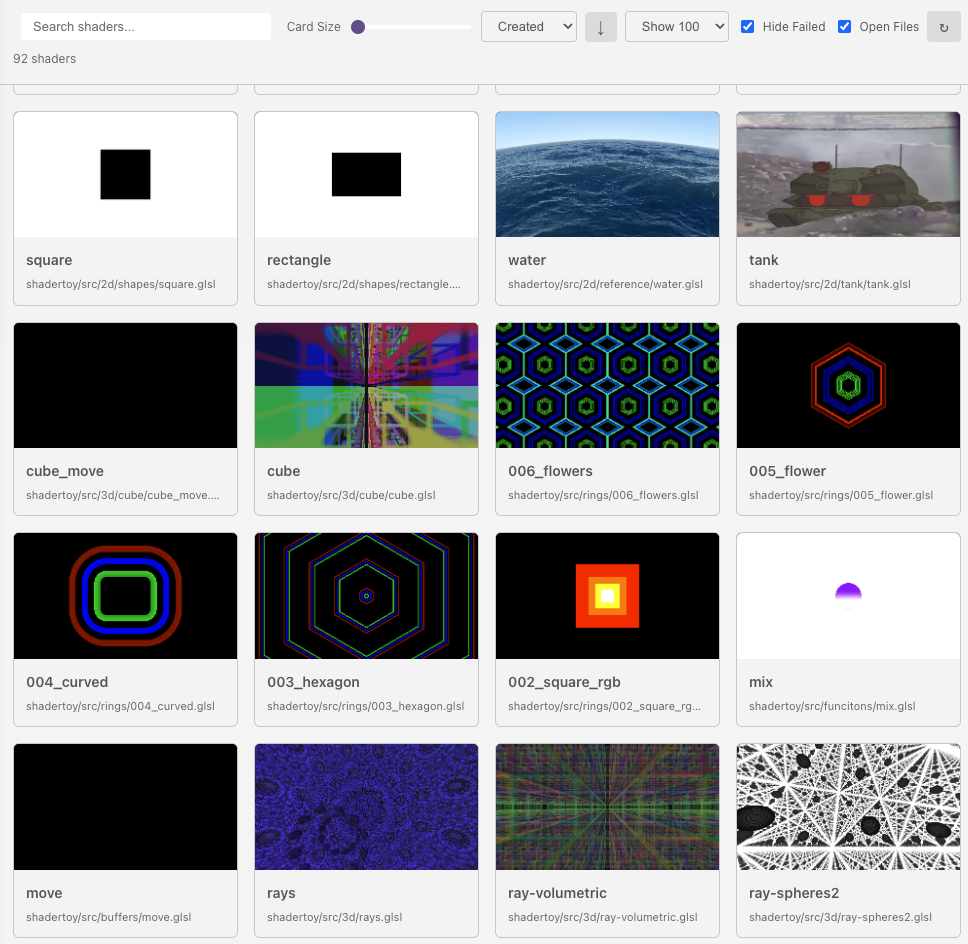
State (search, sort, page, card size) persists independently for each view.
Browsing and Navigation
Each shader in your workspace appears as a card showing a live-rendered thumbnail preview, the shader filename, and its last-modified date.
- Click a card to open the shader file in the editor and refresh its thumbnail preview.
- Right-click a card to open a context menu with options to open the shader, open its config, or delete it.
- Open files on select — when enabled, clicking a card opens the shader file in the editor. Toggle this off in the options panel if you prefer to browse thumbnails without switching files.
Search and Sort
- Search — type in the search bar to filter shaders by name, path, or shader source text (case-insensitive). Name matches are shown before path and source-text matches. Multiple terms are combined, quoted phrases match exactly, and terms prefixed with
-are excluded, e.g.ray sphere -bufferor"ray march". - Sort by — dropdown with options:
- Name — alphabetical A–Z
- Updated — most recently modified first
- Created — newest first
- Sort order — toggle button to switch ascending/descending
Display Options
Click the options button to expand the display settings panel:
- Card size — slider (100–1000px width) to control how large shader cards appear. Only available in grid layout mode.
- Layout — toggle between grid (cards in a responsive grid) and row (cards in a single-column list with larger thumbnails).
- Page size — dropdown to show 10, 20, 30, 50, or 100 shaders per page.
- Hide failed — checkbox to hide shaders that failed to compile or render.
- Open files on select — checkbox to control whether clicking a card opens the file in the editor.
Refresh
Click the refresh button in the toolbar to re-scan the workspace for shaders and regenerate all thumbnails. There is a short rendering delay (~3 seconds) while thumbnails are captured.
Clicking an individual shader card also refreshes that shader's thumbnail — useful after editing a shader to update its preview in the explorer.
File Management
- New shader — click the + button in the toolbar to create a new shader file from a template.
- Delete shader — right-click a card and choose Delete to move the shader file to the trash. If the shader has dependent buffer pass files, a confirmation dialog warns you before deleting.
Next
Code Snippets — insert bundled shader code through native VS Code completion