Shader Explorer
Shader Explorer lets you browse, search, and preview all shader files in your workspace.
Opening
The Shader Explorer is available in two forms — the sidebar for persistent browsing, and the full panel for focused exploration.
- Sidebar — click the
 Shader Studio icon in the VS Code activity bar. The explorer appears as a sidebar view you can keep open alongside your editor.
- Full panel — open the toolbar menu and choose Shader Explorer, or run Shader Studio: Open Shader Explorer from the command palette.
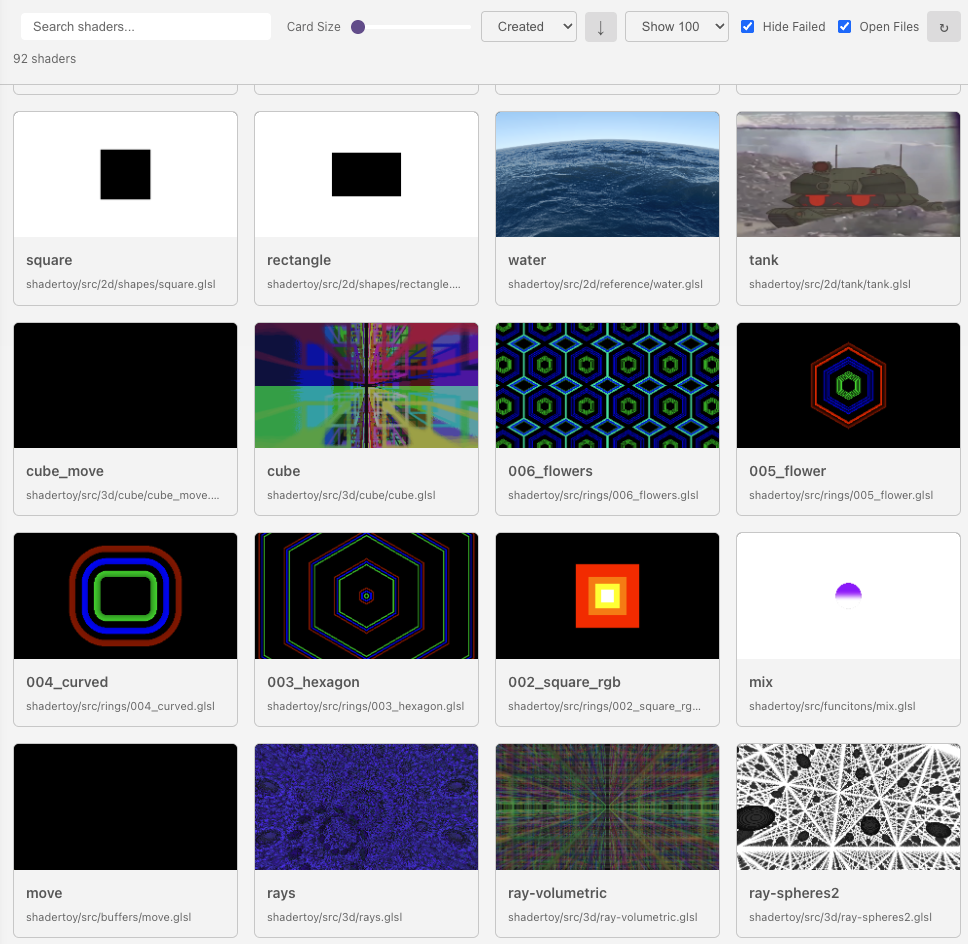
Each view remembers its own search, sorting, page, and card-size choices.
Browsing and Navigation
Each shader in your workspace appears as a card showing a live-rendered thumbnail preview, the shader filename, and its last-modified date.
- Click a card to open the shader file in the editor and refresh its thumbnail preview.
- Right-click a card to open a context menu with options to open the shader, open its config, or delete it.
- Open file when selecting a shader — when enabled, clicking a card opens the shader file in the editor. Turn this off to change the preview without opening its file. This control is hidden while Only keep active shader files open manages the editor tabs.
Keep Files with Their Preview
Open Explorer settings (the gear button), find Files, and enable Only keep active shader files open. It is on by default in standalone and off by default in VS Code. VS Code also exposes it as shader-studio.explorer.keepActiveShaderFiles in Settings.
The active preview opens its main shader, linked buffer, Common and vertex sources. The .sha.json config is not opened automatically. Switching to another shader opens that shader's files and closes shader tabs outside the active previews, including shader files you opened separately. Closing a tab does not delete its file. Other tabs, such as notes or a README, stay open.
In VS Code, each preview maintains its own editor group. With two previews, switching one replaces its file set while the other preview's files stay open. A locked preview keeps its own files until its displayed shader changes or the preview closes. Standalone currently provides one preview pane.
If an old file has unsaved changes, closing it asks first. VS Code uses its usual save dialog; Cancel keeps that file open. Standalone normally saves automatically, but pending or failed saves prompt you to save and close; cancelling or a failed save keeps the file open. Saved files close without a prompt. Cancelling does not undo the preview switch.
Turning the setting off leaves the current tabs open and stops managing them. The feature uses each preview's known source files; it does not search other shaders' configs to guess ownership.
Search and Sort
- Search — type in the search bar to filter shaders by name, path, or shader source text (case-insensitive). Name matches are shown before path and source-text matches. Multiple terms are combined, quoted phrases match exactly, and terms prefixed with
-are excluded, e.g.ray sphere -bufferor"ray march". - Sort by — dropdown with options:
- Name — alphabetical A–Z
- Updated — most recently modified first
- Created — newest first
- Sort order — toggle button to switch ascending/descending
Display Options
Click the gear button to open Explorer settings over the shader list. Settings are grouped into Display, Filters, and Files and save immediately. Close with the × button, Escape, or a click outside. Reset to defaults restores all Display, Filters and Files options, including the host-specific default for active shader files.
- Card size — slider (100–1000px width) to control how large shader cards appear. Only available in grid layout mode.
- Layout — toggle between Grid (cards in a responsive grid) and List (cards in a single-column list with larger thumbnails).
- Per page — dropdown to show 10, 20, 30, 50, or 100 shaders per page.
- Hide buffer files and Hide vertex files — hide matching buffer and vertex filenames from the explorer.
- Hide failed previews — checkbox to hide shaders that failed to compile or render.
- Open file when selecting a shader — controls whether clicking a card opens its file when automatic file management is off.
- Only keep active shader files open — opens and retires file sets with the active previews, as described above.
Refresh
Shader Explorer updates by itself when shader or .sha.json files are added, changed, or deleted, and redraws the affected thumbnails.
Click the refresh button in the toolbar to re-scan the workspace for shaders and regenerate all thumbnails.
Clicking an individual shader card also refreshes that shader's thumbnail — useful after editing a shader to update its preview in the explorer.
File Management
- New shader — click the + button in the toolbar to create a new shader file from a template.
- Delete shader — right-click a card and choose Delete to move the shader file to the trash. If the shader has dependent buffer pass files, a confirmation dialog warns you before deleting.
Next
Code Snippets — insert bundled shader code through native VS Code completion